¶ Introduction
To have seamless integration with Salvus-Health calendar, we offer the embdedded version that can be added in any website that support JavaScript.
¶ URL
For each release the calendar URL reference changes the v(x) (e.g. v3) to avoid breaking changes for existing clients that are still in older versions.
¶ Production - Latest Version V3
https://storage.salvus-health.com/libraries/calendar-widget/prd/v3/calendar-widget.prd.js
¶ DEVELOPMENT - Latest Version V3
https://salvusstorage.blob.core.windows.net/salvus-libraries/salvus-calendar-widget/dev/v3/salvus-calendar-widget.dev.js
¶ Integration
Integration is very simple, and it's done into 2 steps:
¶ Step 1: HTML File
Add the latest version in the src attribute. Please note that there is also difference on the environment based on the prd and dev keyword in the URL.
//This calls the source code of our calendar implementation
<script type="text/javascript" src="https://salvusstorage.blob.core.windows.net/salvus-libraries/salvus-calendar-widget/dev/v3/salvus-calendar-widget.dev.js
"></script>
//The div element where calendar will be displayed
<div id="salvus-health-calendar-embed" style="min-width:320px;height:700px;"></div>
¶ Step 2: Initialize the Calendar Widget
¶ JavaScript code
Call the Salvus.initCalendarInlineWidget to initialize the calendar with desired parameters. Checkout the next session about the meaning of each parameter.
 Salvus.initCalendarInlineWidget({
      parentElementId: "salvus-health-calendar-embed",
            pharmacyName: "APOTHEEK-VAN-DEN-BERGH-ANTWERPEN",
   	 	//Use appointmentIdentifier when you want specific appointment to be displayed only
   		//If you want to display limited set of pharmacies then use an array of identifiers ["xxx"]
            //appointmentIdentifier: "9ae693a2-6e5d-4be8-cfc2-08dd0573d56c"
            source: "Third-Party-Name",
            onScheduled: function(results) {
                console.log("I am code of client side, and I have the following result:", results);
            },
            onError: function(error) {
                console.error("Error in calendar widget:", error);
            },
            fieldConfiguration: {
                gender: { visible: false, required: false},
                email: { visible: true, required: true},
                phone: { visible: true, required: false },
                dob: { visible: false, required: false},
                postalCode: { visible: false, required: false}
            },
            showConsent: true,
            showReservations: true,
            showAppointments: true,
            locale: 'nl-BE',
        });
¶ Parameters
¶ parentElementId (String)
-
Description: The ID of the HTML element where the calendar widget will be embedded.
-
Example:
"salvus-health-calendar-embed"
¶ pharmacyName (String)
-
Description: The name of the pharmacy associated with the calendar booking system. Use this when you want to show list of available appointments and reservations based on pharmacy configuration in Salvus platform. Ignore the
appointmentIdentifierif you want't the full list of appointmentes based on pharmacy configruation is salvus. -
Example:
APOTHEEK-DE-VRIJE-VOGEL
¶ appointmentIdentifier (GUID)
- Description: The identifier of appointment. It can be used in two cases:
- Show directly one appointment
- Example
 :
: '775dcc03-66f7-4ab6-c319-08dd4b60c49x'
- Show list of spcific appointments based on the identifiers
- Example
 :
: ['775dcc03-66f7-4ab6-c319-08dd4b60c49x', '775dcc03-66f7-4ab6-c319-08dd4b60c49y']
pharmacyNameis mandatory whenappointmentIdentifieris provided as array of strings.
¶ source (String)
-
Description: The origin or platform integrating the calendar.
-
Example:
"Salvus-Website"
¶ onScheduled (Function)
-
Description: A callback function triggered when an appointment is successfully scheduled.
-
Parameters:
results(Object): Contains appointment details.
onScheduled: function(results) {
    console.log("I am code of client side, and I have the following result:", results);
}
¶ onError (Function)
-
Description: A callback function triggered when an error occurs in the calendar widget.
-
Parameters:
error(Object): Contains error details.
onError: function(error) {
     console.error("Error in calendar widget:", error);
}
¶ fieldConfiguration (Object)
- Description: Defines the visibility and requirement status of various fields in the booking form. For vaccine reservation fields cannot be customized.
| Field | visible (Boolean) |
required (Boolean) |
Description |
|---|---|---|---|
gender |
false |
false |
Hides gender selection |
email |
true |
true |
Displays and requires an email address |
phone |
true |
false |
Displays but does not require a phone number |
dob |
false |
false |
Hides date of birth field |
postalCode |
false |
false |
Hides postal code field |
fieldConfiguration: {
  gender: { visible: false, required: false},
  email: { visible: true, required: true},
  phone: { visible: true, required: false },
  dob: { visible: false, required: false},
  postalCode: { visible: false, required: false}
}
Patient Services
If appointment type is related to a patient service, then the calendar by default will override thefieldConfigurationsettings and show the mandatory fields that are required for patients.
If appointment is not related to a patient service then email or phone must be set to required. Otherwise the libary will force the email as mandatory field.
¶ prefill (object)
-
Description: You can prefill the fields on the form if you provide the data
-
Example:
prefill: {
  firstName: "string",
  lastName: "string",
  email: "string",
  phone: "string",
  dob: "string",
  postalCode: "string"
}
¶ showConsent (Boolean)
- Description: Determines whether a consent checkbox is displayed in the booking process.
¶ locale (String)
-
Description: Sets the language and regional format for the calendar widget. By default 3 languages are supported
nl-BE,fr-BE, anden-BE -
Example:
'nl-BE'(Dutch - Belgium)
¶ Appointment & Reservation Configuration
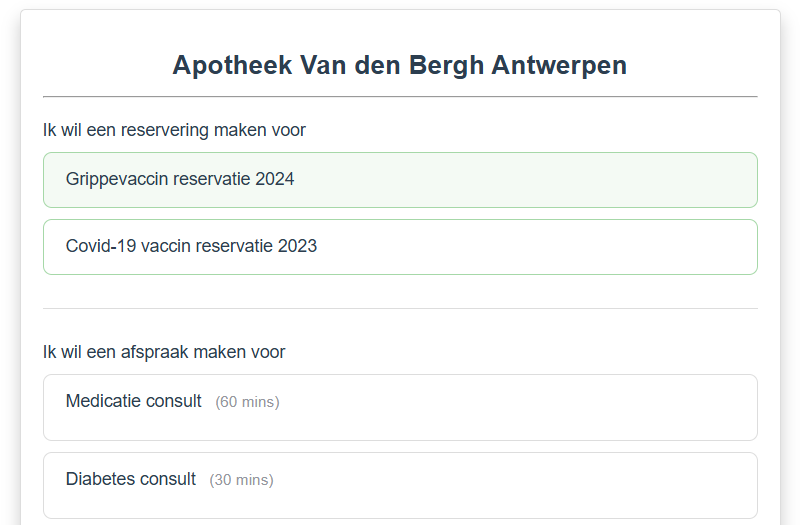
In case the full list of appointment needs to be shown, use the property pharmacyName where you add the URL of the pharmacy and omit the field appointmentIdentifier. This will list all appointments and reservations that pharmacy has configured in salvus-health. If you want to limit the set of appointmetns, then provide the field appointmentIdentifier as an array of string with appointments identifiers.
By default property
showAppointmentsandshowReservationsare set to true to display both at the same time as shown below. If you want only appointments then set to falseshowReservations, and vice versa.
¶ Theme Configuration
You can add theme object in the calendar initialization with properties listed below. The theme object defines the core styling properties for the application, ensuring a consistent and visually appealing user interface. Below is a detailed breakdown of each property:
¶ Theme Properties:
| Property | Default Value | Description |
|---|---|---|
primaryColor |
#454B60 |
Used for main buttons and focused borders to create a strong visual emphasis. |
secondaryColor |
#A6D8A8 |
Applied to calendar day selections and slot buttons for a complementary contrast. |
labelColor |
#9496A0 |
Defines the color of form labels for readability and subtle contrast. |
backgroundColor |
#FFFFFF |
The main background color, ensuring a clean and neutral layout. |
textColor |
#2C3E50 |
The general text color, offering high readability on a light background. |
borderColor |
#DDDDDD |
Used for input field borders and other outlined elements. |
fontFamily |
'Open Sans, sans-serif' |
Specifies the primary font family to maintain a modern and clean typography. |
¶ Localization
Embedded calendar supports 3 languages: nl-BE, fr-BE, and en-BE. For all 3 languages the translations are provided by default. Use locale property to get specific language and localization.
¶ Custom Translations
To provide custum translations the property translations can be used. For example if we want to add the spanish version es-ES we must translate all default keys that are provided by the library:
{
        selectDate: "Select a date",
        noAvailableSlots: "No available slots.",
        noConnectionWithCalendar: "No connection with the calendar system.",
        next: "Next",
        bookingDetails: "Booking Details",
        date: "Date",
        time: "Time",
        firstName: "First Name",
        lastName: "Last Name",
        email: "Email",
        phone: "Phone",
        gender: "Gender",
        male: "Male",
        female: "Female",
        dateOfBirth: "Date of Birth",
        postalCode: "Postal Code",
        submit: "Submit",
        optional: "optional",
        thankYou: "Thank you",
        appointmentScheduled: "your appointment is scheduled",
        from: "from",
        to: "to",
        selectDateText: "Select a date",
        noSlotsAvailable: "No available slots",
        required: "required",
        appointmentConfirmation: "Appointment Confirmation",
        pleaseEnterValue: "Please fill out this field",
        pleaseEnterEmail: "Please enter a valid email address",
        pleaseEnterPhone: "Please enter a valid phone number",
        pleaseSelectDate: "Please select a date",
        pleaseSelectGender: "Please select a gender",
        makeReservationFor: "I want to make a reservation for",
        makeAppointmentFor: "I want to make an appointment for",
        howManyVaccines: "How many vaccines would you like to reserve?",
        yourInfoAlreadyIncluded: "* Your information is already included. Please enter the information of the second person",
        firstNameAdditional: "First name",
        lastNameAdditional: "Last name",
        comments: "Comments",
        termsAndConditions: "Terms and Conditions",
        vaccineAdministration: "Vaccine administration",
        vaccineAdministrationNoChoice: "No choice",
        vaccineAdministrationPickUp: "Pick up at pharmacy",
        vaccineAdministrationAtPharmacy: "Administration at pharmacy",
        agreeToServices: "I accept the <a href='https://www.salvus-health.com/en/terms-of-use' target='_blank'>Terms and Conditions</a> and <a href='https://www.salvus-health.com/en/privacy-policy/' target='_blank'>Privacy Policy</a> for the provision of pharmaceutical care services.",
        agreeToMarketing: "I agree to receive marketing communications from the pharmacy and third parties.",
        fluVaccine: "Flu vaccine reservation",
        covidVaccine: "Covid-19 vaccine reservation",
        invalidNationalRegistrationNumber: "Invalid national registration number",
        vaccineReservationFor: "reservation for",
        people: "people",
        person: "person",
        hasBeenConfirmed: "has been confirmed",
        year: "year",
        youWillBeContactedByThePharmacyForYourAppointmentTime: "You will be contacted by the pharmacy for your appointment time",
        showMoreInformation: "Show more information",
        nationalRegistrationNumber: "National registration number",
        BACKEND_RESERVATION_PATIENT_ALREADY_HAS_COVID_RESERVATION_PATIENT: "Patient already has a covid reservation",
        BACKEND_RESERVATION_PATIENT_ALREADY_HAS_FLU_RESERVATION_PATIENT: "Patient already has a flu reservation",
        duplicateNationalRegistrationNumber: "Duplicate national registration number",
        reservedFor: "Reserved for",
        your: "Your",
        flu: "flu vaccine",
        covid: "covid-19 vaccine"
    }
¶ Example
//Initialize the calendar component and append to the div element mentioned in step 1.
Salvus.initCalendarInlineWidget({
  pharmacyName: "APOTHEEK-VAN-DEN-BERGH-ANTWERPEN",
  //....removed rest of parameters for simplicity
  translations: {
  	"es-ES": {
       selectDate: "Select a date",
        noAvailableSlots: "No available slots.",
        next: "Next",
        bookingDetails: "Booking Details",
        date: "Date",
        time: "Time",
        firstName: "First Name",
        ....//The rest of keys and values
    }
  }
});
¶ Consent Management
Consent is collected implicitly by default, assuming that the consent policy is described and provided by third party that is integrating the calendar. However, it is possible to show explicit consent check-boxes into the embeded calendar using showConsent proeprty and will display the consent check-boxes as shown below.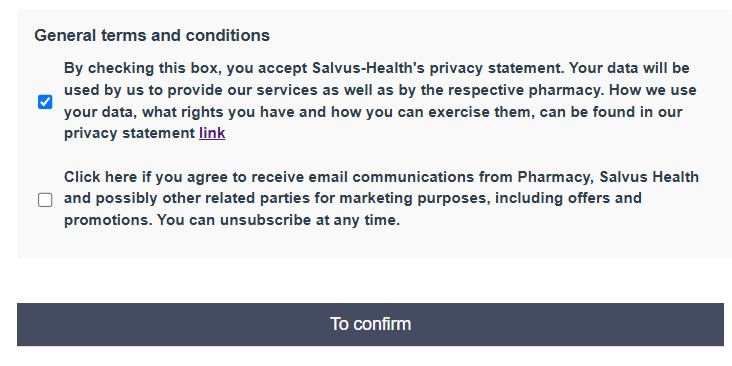 .
.
- Salvus general terms are by default mandatory and selected.
¶ Calendar Debuging
If there's a problem with the widget and you want to see detailed debugging messages in the console, you can enable this by setting debugMode to true when initializing the calendar.
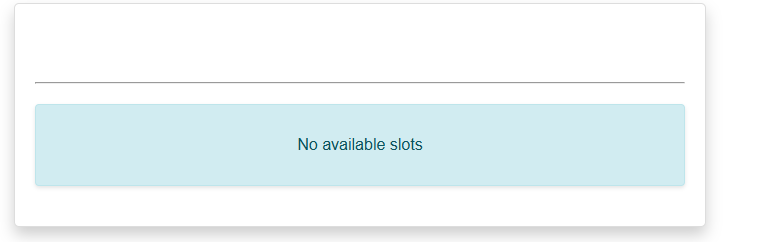
If the calendar widget isn't set up correctly, an error message will appear to let you know it couldn't connect to the proper configuration.

Or when configuration is well, but appointments are not activated by pharmacist in Salvus, then the following message is shown: